Stripe
This section gives you an overview of how to make payments via Stripe through OrchestratorX.

Stripe is a suite of APIs powering online payment processing and commerce solutions for internet businesses of all sizes. It allows businesses to accept payments and scale faster. To learn more about payment methods supported by Stripe via OrchestratorX, visit here.
Activating Stripe via OrchestratorX
Prerequisites
- You need to be registered with Stripe in order to proceed. In case you aren't, you can quickly set up your Stripe account here.
- You should have a registered OrchestratorX account. You can access your account from the OrchestratorX control center.
- Enable handling raw card data for your Stripe account by sending a request to Stripe support (visit here for more details). This will enable OrchestratorX to securely handle your customer's payment details in a PCI-compliant manner.
- Enter your Country, Business Label, and Stripe API Key. The Stripe API key can be found in your Stripe dashboard under Developers -> API keys as Secret Key.
- Note: Ensure you use the Secret Key, which starts with
sk.
- Note: Ensure you use the Secret Key, which starts with
- Select all the payment methods you wish to use Stripe for. Ensure that these match the ones configured on your Stripe dashboard under Settings -> Payments -> Payment methods.
- Navigate to the webhooks section of your Stripe dashboard (Developers -> Webhooks) and create a new webhook by clicking Add an endpoint.
Configuring Webhooks
Step 1: Set up your webhook endpoint on the OrchestratorX dashboard under Settings -> Payment settings -> Click on the profile.
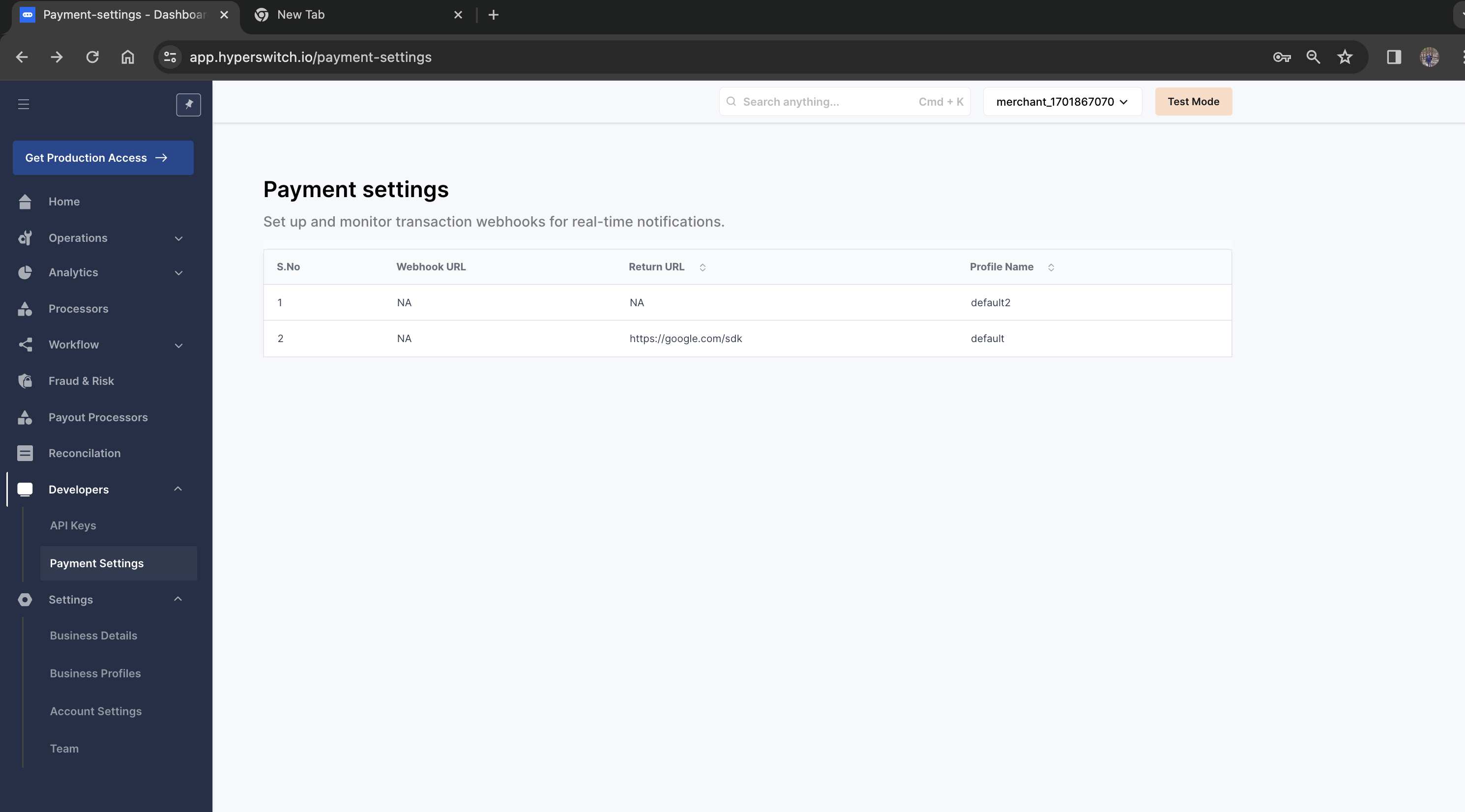
Step 2: Configure OrchestratorX's webhook endpoint on your Stripe dashboard. You can find OrchestratorX's endpoint for your Stripe account by clicking Processors -> Stripe.
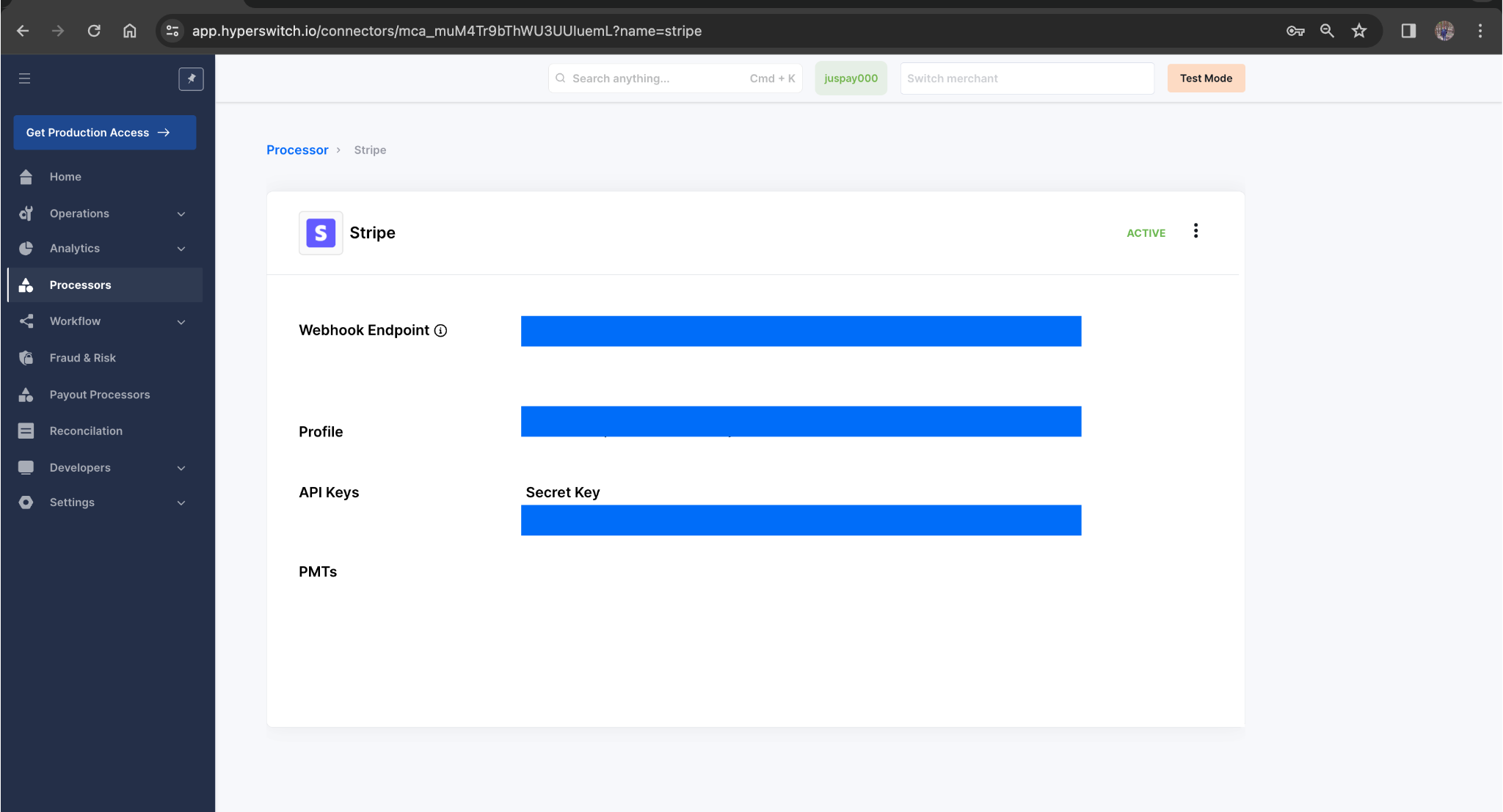
This will ensure that if your Stripe transaction was sent through OrchestratorX:
- Stripe sends webhooks to the OrchestratorX endpoint configured in Step 2.
- OrchestratorX forwards these webhooks to your endpoint configured in Step 1.
Steps to activate Stripe on the OrchestratorX control center.